
Browser history helps users revisit important websites, recover previously viewed pages, and continue unfinished work. However, you may sometimes encounter instances where the Safari and Chrome browser histories are deleted from your Mac. Such instances usually happen due to accidental deletion, browser cleanup, system crashes, syncing issues, malware attacks, or factory resets. Regardless of these reasons, you can try some free Mac data recovery methods to recover your browser’s deleted history.
Fortunately, deleted browser history can often be recovered using built-in browser features, backups, cloud syncing services, or free mac data recovery software. In this guide, we’ll explore different methods to recover deleted Safari and Chrome browser history.
Common Reasons for Deleted Browser History
Identifying the exact reasons for your deleted safari, chrome browser history can help you determine the right recovery methods. Some main reasons why browser history gets deleted include:
- Accidental clearing of browsing data
- Browser reset or reinstallation
- Incognito or Private browsing sessions
- Corrupted browser profiles
- System crashes or improper shutdowns
- Malware or virus infections
Understanding How Browser History is Stored
Both Safari and Chrome store browsing history locally on your device in database files.
Chrome History Storage
Google Chrome stores history in SQLite database files within the user profile folder.
Safari History Storage
Safari stores browsing history in database files under the Safari library directory on macOS.
Usually, when your browser history is deleted, the database entries may remain on the drive until overwritten, making recovery possible.
Methods to Recover Deleted Chrome Browser History
In this section, we’ll cover different quick methods that you can try to recover your deleted browser history on the Chrome browser:
Method 01: Recover Chrome History Using Google Account Activity
If Chrome sync was enabled on your device, your browsing activity may still exist in your Google account. To recover them:
- Launch the Chrome browser on your PC.
- Go to your Google account activity page.
- Sign in with your synced Google account.
- Navigate to “Web & App Activity” and check the recently visited websites.
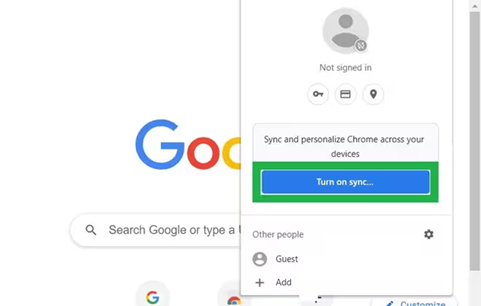
Note: This method works well if Chrome synchronisation was enabled before the history deletion.
Method 02: Restore Chrome History from Local Cache
Ever after your browser history is deleted, cached files may contain traces of previously visited websites. You can follow the below steps to restore your history files from local cache:
- Open File Explorer, go to the Chrome cache folder.
- Search for cached webpages.
- Open cache entries using cache viewer tools.
Although this method may not restore the full history, it can help identify previously visited sites.
Method 03: Restore Chrome History from Backup
If you’ve synced your PC with regular backups, you can restore Chrome profile folders from there. Your Windows PC stores browser profile data at the default folder location, i.e., C:\Users\Username\AppData\Local\Google\Chrome\User Data\Default. Follow the below steps to restore your browser files using this backup:
- Open the backup storage by following the above path.
- Locate Chrome profile files.
- Restore the “History” database file.
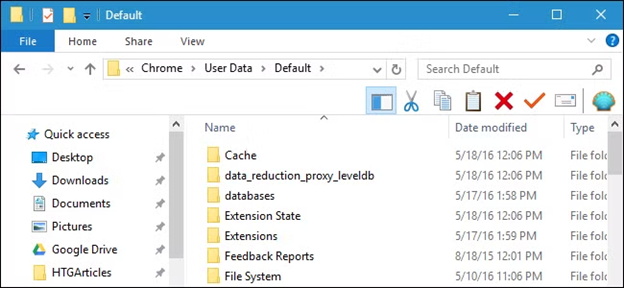
Once done, restart Chrome and check if the backups restore your browser files.
Methods to Recover Deleted Safari Browser History
Here are some quick methods that you can follow to restore Safari browser history on your Mac:
Method 01: Restore Safari History from iCloud Sync
If you’ve synced your Mac with iCloud backups, your deleted browser history might be present there. To restore deleted Safari history from synced Apple devices or iCloud:
- Sign in with the same Apple ID.
- Enable Safari syncing and check browsing history on synced devices.
If iCloud synchronisation is active, deleted history may reappear automatically.
Method 02: Restore Using Time Machine Backup
Another backup alternative that you can try to restore your deleted Safari browser is by using Time Machine backup. macOS usually saves Safari browser files at ~/Library/Safari/. You can follow the below steps to recover your browser history using Time Machine backup:
- Launch Finder, go to the Safari folder.
- Open Time Machine and browse older backups.
- Restore Safari history database files.
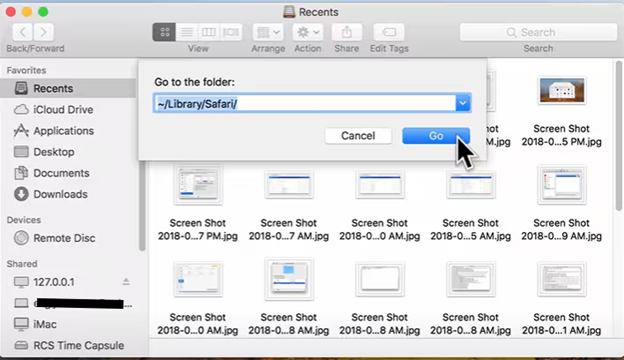
This restores previously saved browsing history data.
Recover Deleted Safari and Chrome History Using Free Data Recovery Software
Instances may happen when you don’t have any backup of your deleted Safari and Chrome browsers. In such cases, you can use third-party free recovery tools to get your browser history back. Some free Mac data recovery software, like Stellar data recovery free for Mac, can help recover deleted browser database files directly from Mac storage. You can use this software to restore deleted browser-related files, profiles, cache data, and other lost information from Mac devices.
Here’s How to Recover Deleted Safari and Chrome Browser History Using Stellar Data Recovery Free for Mac:
Step 1: Visit the official Stellar website to download and install the Stellar Data Recovery Free for Mac tool on your Mac.
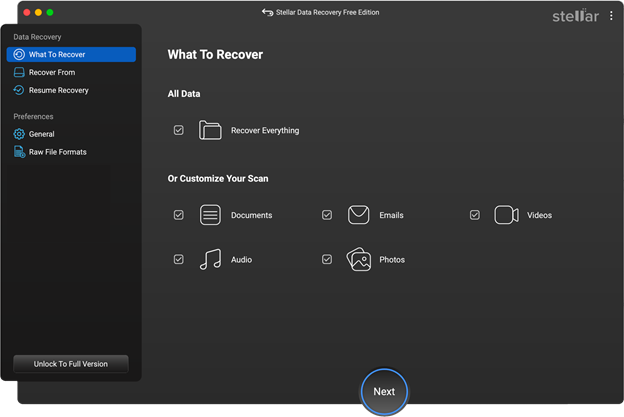
Step 2: Launch the software after installation, select Recover Everything (as you need to restore browser history files) and click Next to continue.
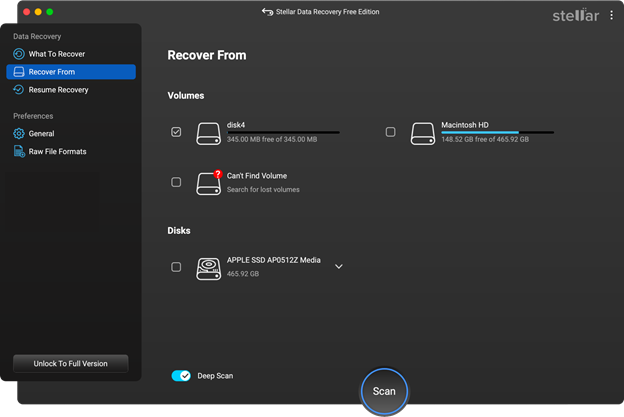
Step 3: Choose the Mac drive where Safari or Chrome history exists (typically it is stored on Macintosh HD). Click Scan to begin searching for deleted files.
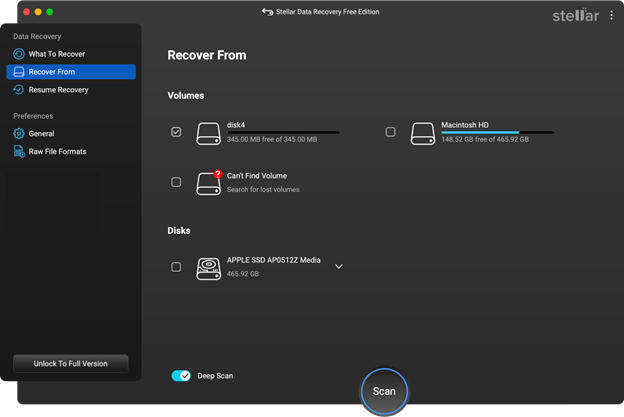
Step 4: After scanning completes, the software displays recoverable files and folders. Search for browser files such as History.db, History, Safari profile folders, etc. Click Recover to save them back to your device.
Note: Try saving the recovered files to a different location or external drive to avoid overwriting existing data.
Conclusion
Losing Safari or Chrome browser history can be frustrating, especially when important websites and browsing sessions disappear unexpectedly. If you’re good at maintaining regular backups of these browser files on your Windows or Mac PC, then these backups can help you to a great extent. However, without backup, advanced methods like using third-party free Mac data recovery software can be the best option.
To maximise recovery success, it is important to stop using the affected drive immediately after data loss and begin recovery as soon as possible. Regular backups, browser synchronisation, and bookmarking essential websites can also help prevent future browser history loss.
Frequently Asked Questions (FAQs)
Can deleted private browser history be recovered?
No, private browsing sessions in Safari and Incognito mode in Chrome are designed not to store browsing history locally.
Can I recover browser history without a backup?
Yes, you can use free data recovery software to recover deleted history files even without backups.
Is browser cache the same as browser history?
No. Browser history stores visited URLs, while cache stores temporary website content and files.
